
Debugging AICore Binding Failures with Gemini Nano on Android
How to debug Android AICore BINDING_FAILURE / ErrorCode 601 with Gemini Nano or ML Kit GenAI on supported devices such as Pixel 9 and Pixel 10.

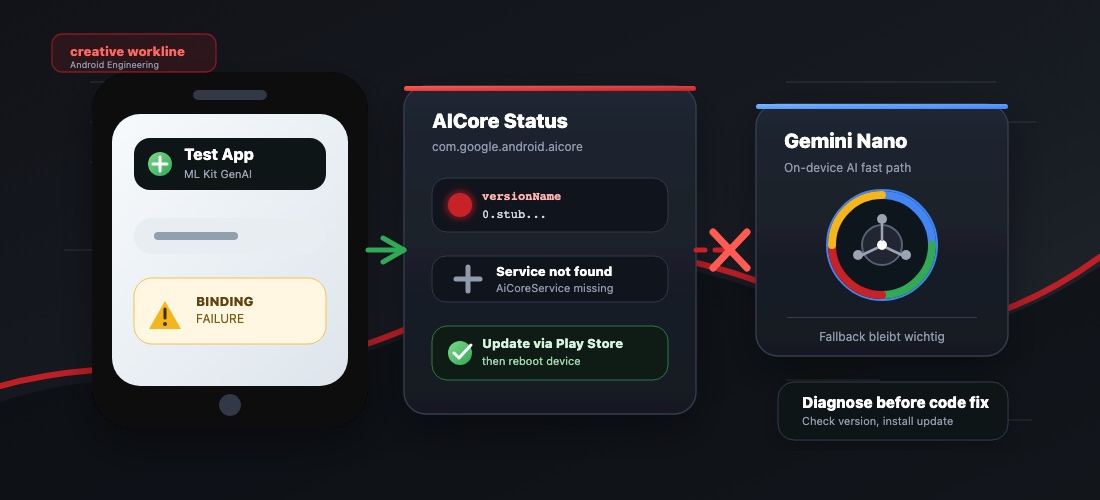
Gemini Nano through Android AICore is an attractive option for mobile apps: AI features can run locally on the device, without a custom backend, without shipping an API key in the app, and without sending user input to a cloud model.
For product planning, on-device AI is one architecture option among others. If you are deciding between local models, EU-hosted LLMs, RAG, or agentic workflows, see the service page on AI agents and in-app assistants for apps.
The first test on a new device can still be confusing. A Pixel device such as a Pixel 9 or Pixel 10 may be officially supported, the integration may look correct, and ML Kit GenAI may still fail before the model is even reached.
A typical log on a freshly set up Pixel 10 can look like this:
Falling back to local parser: Gemini Nano status check failed
(GenAiException: [ErrorCode 601] AICore failed with error type 4-CONNECTION_ERROR
and error code 601-BINDING_FAILURE: AiCore service failed to bind to primary or fallback.)
If the device is supported and your code already handles FeatureStatus, the next thing to inspect is AICore itself.
First Check: Is AICore Still a Stub?
ADB can show which AICore version is installed:
adb shell dumpsys package com.google.android.aicore | grep -E 'versionName=|versionCode=|codePath=|installerPackageName='This kind of output is a red flag:
versionName=0.stub.stub_aicore_20250905.00_RC00.803343729
versionCode=286955
codePath=/product/priv-app/AICorePrebuilt-aicore_20250905.00_RC00
installerPackageName=null
0.stub... means the device still has the system-image placeholder for AICore, not the full AICore app that provides the services ML Kit GenAI needs to bind to.
Logcat usually confirms the same problem:
Unable to start service ... AiCoreMultiUserService ... not found
Unable to start service ... AiCoreService ... not found
android.os.RemoteException: Unable to find/start AICoreService
Speech enhancement is disabled because of outdated com.google.android.aicore version 286955
In this state, your app cannot reliably trigger the model download, because the actual local AICore service is not available yet.
You may also see logs like this:
[AiCoreLlmService] aiCoreService is not in Persistent Mode
The persistent mode can be enabled in Developer Options -> AICore Settings
Do not start with that setting. For the regular production ML Kit path, Persistent Mode should not be required. Treat Unable to find/start AICoreService and AiCoreService ... not found as the primary signal first: the bindable AICore service is missing or not ready. Only look at Developer Options after AICore is fully updated and the service exists.
Why This Happens on Supported Devices
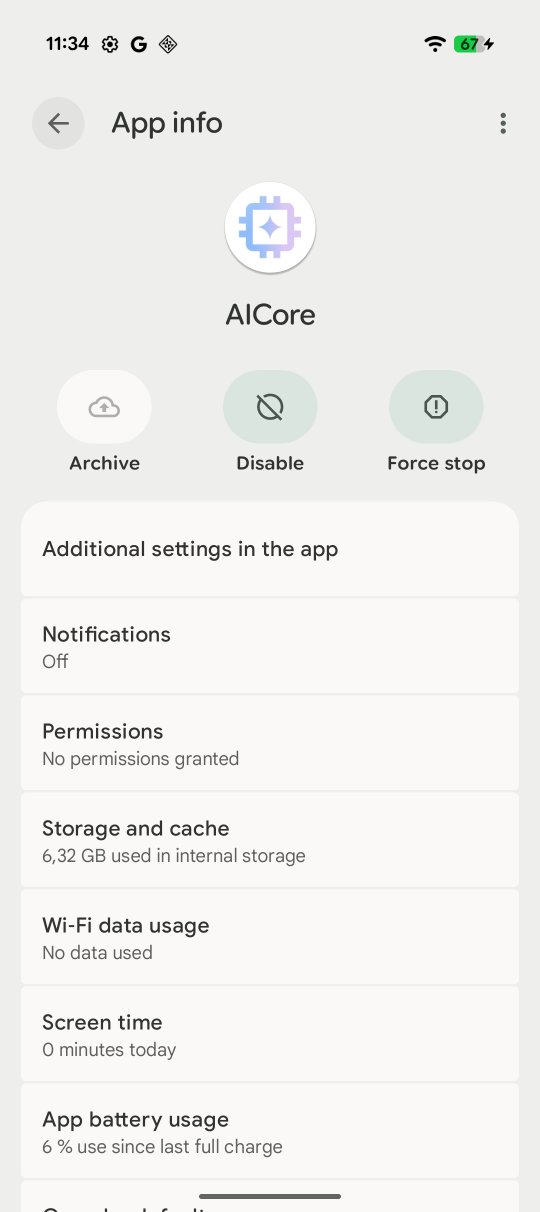
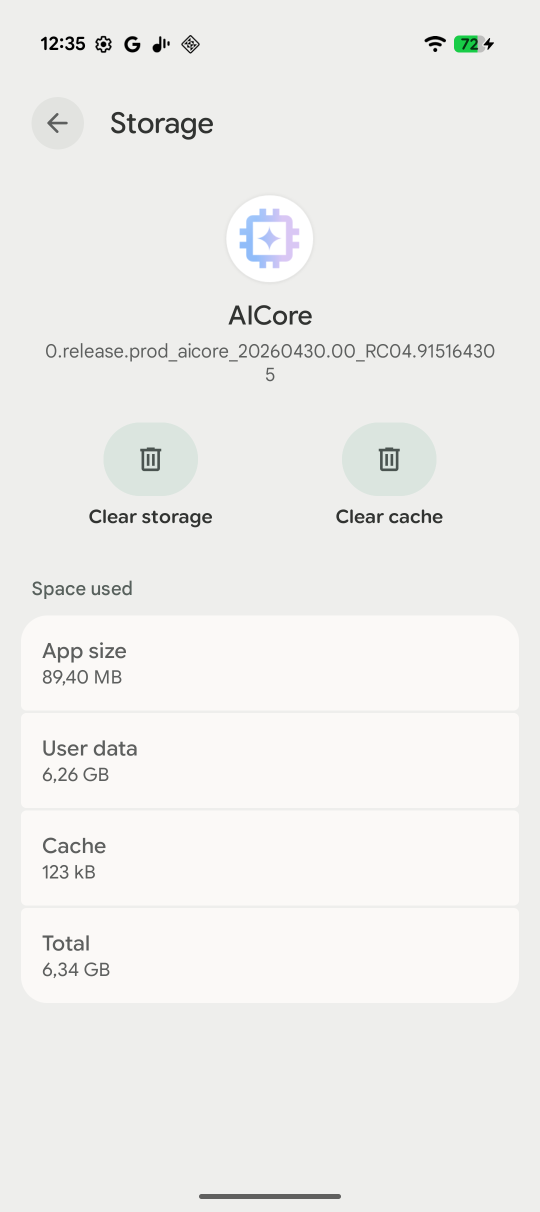
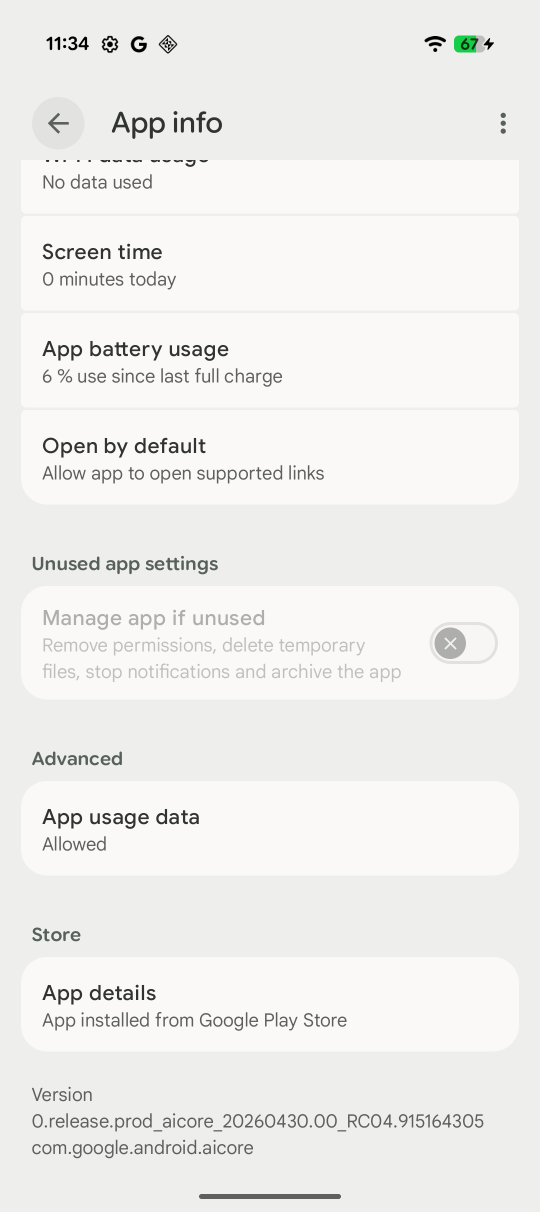
Pixel devices can ship with AICore as a stub. The full AICore component, model configuration, and related Google components are then delivered through Google Play, Google Play services, and Play system updates.
On a freshly configured device, that background setup is not always complete when you start testing your app.
Signing in with a Google account helps because Play Store and system services can fetch updates. It does not guarantee that AICore is ready at that exact moment.
This can also happen on devices that are listed as supported for ML Kit GenAI or the Prompt API, including Pixel 9 and Pixel 10 models. Device support means the hardware and software generation can run the feature. It does not guarantee that the full AICore package, Gemini Nano model, Play system updates, and related Google components are already installed and ready on a freshly configured device.
What Usually Fixes It
This sequence is a practical starting point:
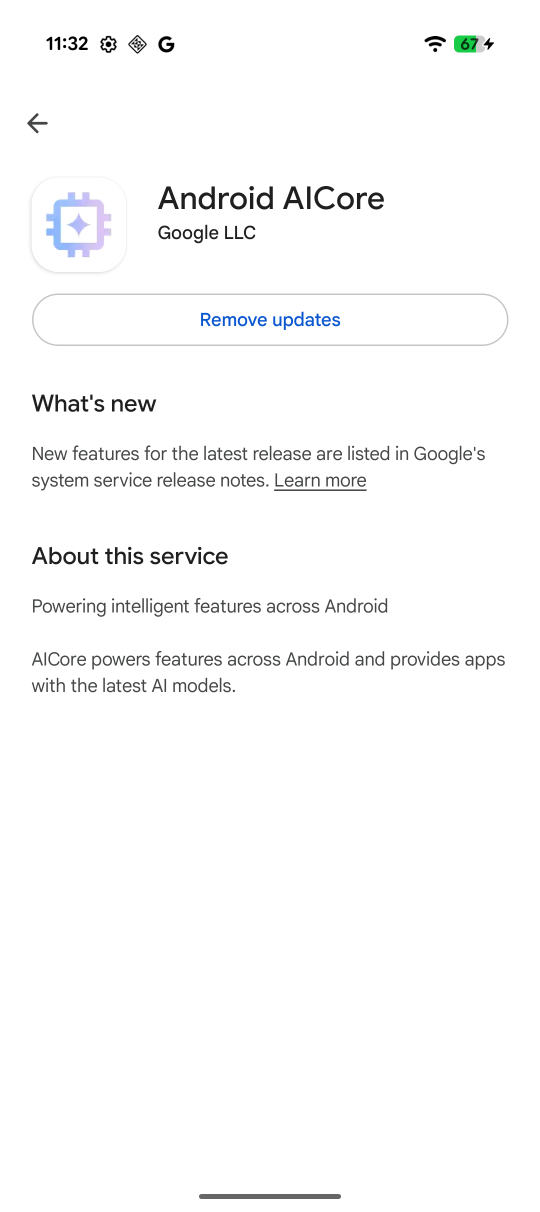
- Open the Play Store on the device.
- Search for
Android AICore. - If an update is available, install it.
- If AICore is not shown as a standalone update, open your device settings.
- On Pixels, tap your profile. On other Android devices, tap
GoogleorGoogle services. - Tap
All services>System services>AICore. - If an update is available on the AICore listing page, install it.
- Let pending Google and system updates finish.
- Reboot the device.
- Reinstall your app or at least force stop and restart it.
- Check the AICore version and ML Kit status again.
After the update, versionName should no longer start with 0.stub.... Only then does it make sense to continue debugging FeatureStatus.DOWNLOADABLE, DOWNLOADING, or AVAILABLE.
Handle Status Defensively in Code
A production app should never depend on AICore as the only implementation path. Gemini Nano may be unavailable because the device is unsupported, AICore is not updated yet, the model has not been downloaded, quota has been reached, or the local service is temporarily unavailable.
A robust flow looks roughly like this:
val client = Generation.getClient()

val status = runCatching { client.checkStatus() }
    .getOrElse {
        // Fall back locally and log the failure in debug builds.
        return localParser.parse(input)
    }

when (status) {
    FeatureStatus.AVAILABLE -> {
        client.generateContent(request)
    }
    FeatureStatus.DOWNLOADABLE,
    FeatureStatus.DOWNLOADING -> {
        client.download().collect { /* Log or display download progress. */ }
    }
    else -> {
        localParser.parse(input)
    }
}
For users, the app should still do something useful in this state. For extraction or form-assist features, a local parser is often a good fallback. For developers, logs matter: status, AICore version, model name, token limit, and concrete error codes should be visible in debug builds.
Takeaway
BINDING_FAILURE on a supported Pixel does not automatically mean Gemini Nano is unavailable for that device. Often, AICore simply has not finished updating yet.
The fastest diagnostic is the AICore package version. As long as com.google.android.aicore is installed as 0.stub... and AiCoreService is missing, the issue is not your app code.
For production apps, the main rule is simple: treat on-device AI as the preferred fast path, but always ship a clean fallback.
FAQ
Can AICore BINDING_FAILURE happen on Pixel 9?
Yes. Pixel 9 models are listed as supported for the ML Kit GenAI Prompt API with Gemini Nano v2, but AICore can still fail with BINDING_FAILURE, ErrorCode 601, or AiCoreService not found if the full AICore package or model setup has not finished updating.
Can AICore BINDING_FAILURE happen on Pixel 10?
Yes. Pixel 10 models are listed as supported for newer Gemini Nano availability, but a fresh Pixel 10 can still have a 0.stub... AICore package before Google Play, Play system updates, and the AICore service finish updating.
Does supported device mean Gemini Nano is ready?
No. A supported Android device can still have a stub AICore package, missing service components, pending Play Store updates, or an undownloaded Gemini Nano model. Always check com.google.android.aicore, FeatureStatus, and the concrete ML Kit error code before assuming your app integration is broken.
Where is AICore in Google system services?
Open device settings. On Pixels, tap your profile. On other Android devices, tap Google or Google services. Then open All services > System services > AICore.
Further reading: